The native Salesforce forms solution for nonprofits

ForceForms is built for Salesforce and for small and medium nonprofits. Collect sign-ups, registrations and applications, and keep every response in the system your team already uses.

Prefer to ask first? Send an enquiry.

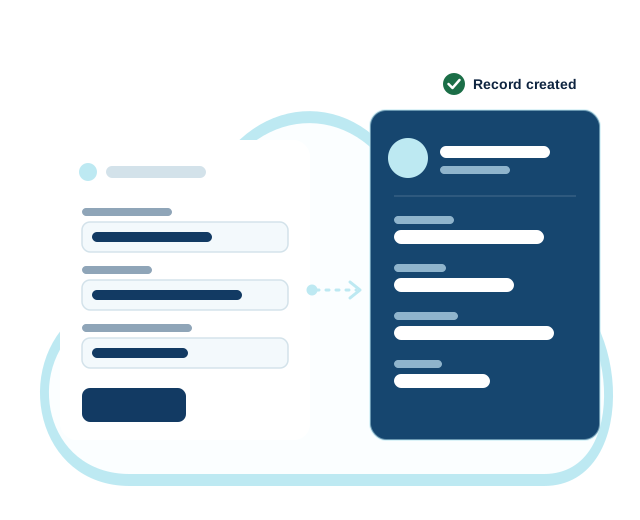
Illustration: a form is filled in, then saved as a record in Salesforce.

Illustration: a submitted form becomes a Salesforce record.

  • Native to Salesforce
  • Built for small and medium nonprofits
  • Guided move to ForceForms
  • Book a demo, buy a plan or ask a question

One less system between your forms and your Salesforce data

Most form tools run outside Salesforce and pass data in. ForceForms is native to Salesforce, so your forms work with the platform your team already uses.

Your data stays in Salesforce

Submissions go to your Salesforce records, so your team works from one source of truth.

Fewer moving parts

No separate form platform to sign in to, connect and keep in sync with your org.

Designed for nonprofit teams

Built for small and medium nonprofits that collect sign-ups, registrations and applications through Salesforce.

Build the forms your programs run on

Create and publish forms for sign-ups, registrations and applications, then share them with a link.

  • Create and publish forms
  • Show fields only when they apply
  • Tell people what happens next after they submit
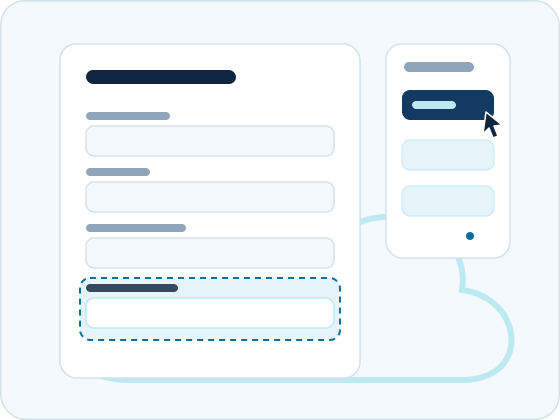
Illustration: a new field is dragged onto a form.

Connect every answer to the right Salesforce field

Choose which Salesforce objects and fields each answer is saved to, and keep working within the permissions you already set.

  • Map answers to Salesforce fields
  • Prefill from records you already hold
  • Respect your existing Salesforce access rules
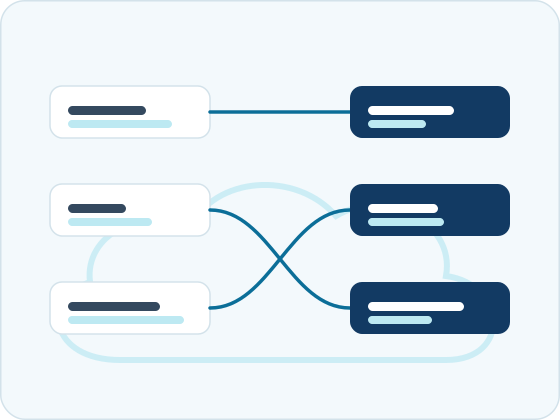
Illustration: three form answers connected to three Salesforce fields.

Run it from where your data already lives

Review submissions alongside the rest of your constituent data, and keep your team in the loop.

  • Review submissions in Salesforce
  • Send confirmation and notification emails
  • Update live forms as your programs change
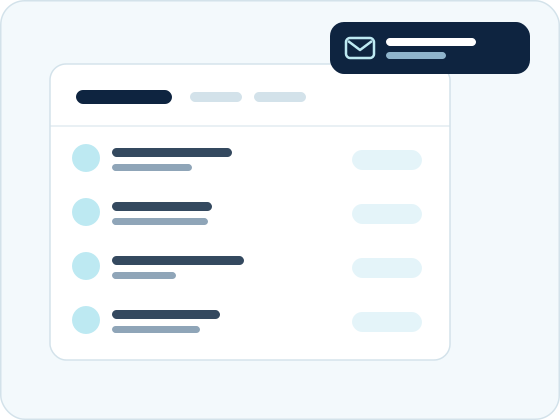
Illustration: new submissions appear in a list and a notification arrives.

How a form becomes a Salesforce record

From the first question to a Salesforce record
  1. Form The questions people answer.
  2. Conditional fields Only the questions that apply appear.
  3. Pagination Long forms split into short steps.
  4. File upload People attach the documents you ask for.
  5. reCAPTCHA Automated spam is stopped.
  6. Salesforce record The answers land in your org.

Forms for the work nonprofits actually do

The forms most nonprofit teams run, collected into Salesforce.

Event registrations

Register attendees and keep responses with your Salesforce records.

Program applications

Take applications and route them to the right team.

Client intake

Gather the details you need before a first appointment.

Donor and contact updates

Let supporters keep their own details up to date.

Feedback surveys

Ask participants how a program is going.

Getting started takes three steps

Book a demo

Show us the forms you run today and we’ll walk through how they would work in ForceForms.

Choose a plan

Pick the plan that fits your organisation, or ask us which one we would suggest.

Move your forms across

Coming from another forms solution? We’ll help you plan the switch.

Using a forms solution with Salesforce today?

Tell us what you run now and we’ll show you what changes, what stays the same, and how to plan the move.

A calm path to ForceForms
  1. List your forms Every live form and where it is published.
  2. Note the mappings Which Salesforce objects and fields each form updates.
  3. Note the logic Prefills, conditional questions and notification emails.
  4. See it in a demo We walk through your own forms in ForceForms.
  5. Pick a quiet period Then move your forms across.

Two running modes, one product

Keep everything inside Salesforce for low-volume forms, or use Cloud Run for high-traffic events and heavy processing.

For low volume

Native mode

Data stays in Salesforce and is processed in Salesforce.

  • No external API callouts, so external API limits are preserved.
  • Form data, personal information and sensitive data never leave Salesforce.
  • Best for simple form-to-record mappings, such as lead capture and “Contact Us” forms.

For high volume

Cloud Run mode

Heavy work runs on Google Cloud Run. Results are pushed back to Salesforce.

  • Takes the heavy processing off Salesforce, protecting its CPU time and governor limits.
  • Submissions are processed in memory and pushed straight back to Salesforce. The external server does not store them.
  • Ideal for high-traffic events, complex data transformations and rich PDF documents.
Where your data is processed
Native modeNo external API callouts
  1. Form submitted The answers arrive in Salesforce. Salesforce
  2. Processed in Salesforce FormProcessingEngine maps the answers and writes the records. Salesforce
  3. Record and log The record and its log stay in Salesforce. Salesforce
Cloud Run modeNot stored on the server
  1. Form submitted The answers arrive in Salesforce. Salesforce
  2. Encrypted webhook An encrypted JSON payload is sent to Google Cloud Run. Google Cloud Run
  3. Processed in memory Heavy work and rich PDFs run off Salesforce. Google Cloud Run
  4. Pushed back The finished data returns to Salesforce through the REST API. Salesforce

Choose a plan

Choose a plan and buy with a short form, or ask us for pricing and a recommendation.

Running mode

Prices in US dollars, billed annually

Starter

For small teams publishing their first forms.

$49.99

per month, billed annually

$599.88 billed once a year

  • 600 form responses per year
  • Unlimited users

Standard

For teams running several forms across programs.

$99.99

per month, billed annually

$1,199.88 billed once a year

  • 1,200 form responses per year
  • Unlimited users

Plus

For larger or more complex Salesforce setups.

$149.99

per month, billed annually

$1,799.88 billed once a year

  • 2,400 form responses per year
  • Unlimited users

* A one-time installation and setup charge of $199 USD applies, in addition to the plan price.

All prices are in US dollars (USD) and are billed annually. Any applicable taxes are extra and must be borne by the customer. The total USD amount, or its equivalent, must be paid in advance.

Payment is collected offline. After you send the purchase form we reply by email with the payment details, and your plan is activated once payment is received.

Questions, answered

The short answers to what nonprofits ask before they book a demo.

What is ForceForms?

ForceForms is a native Salesforce forms solution. It lets nonprofits build forms that work with their Salesforce data.

Who is ForceForms for?

It’s aimed at small and medium nonprofits that use Salesforce, including organisations that run another forms solution with Salesforce today.

How is ForceForms different from Your Forms Solution?

ForceForms is built natively for Salesforce, so forms work with your Salesforce data directly instead of through a separate form platform. In a demo we can walk through your current forms and show how they would work in ForceForms.

Can I move my existing forms?

Tell us which forms you run today when you book a demo. We’ll show you how they would be set up in ForceForms and answer questions about anything that needs special attention.

How do I buy a plan?

Choose a plan on the pricing page, pick your running mode, then press Buy and send the short purchase form. We reply by email with the payment details. Payment is collected offline and your plan is activated once payment is received.

Ready when you are

Book a demo

See ForceForms with the kind of forms you run.

Buy a plan

Compare plans and get started.

Send an enquiry

Ask about features, pricing or moving to ForceForms.

Your privacy choice

We use one small cookie to remember this choice. If you accept, we also use Matomo analytics to count visits and see which pages are used, so we can improve the site. We do not use advertising cookies. Read the privacy policy (opens in a new tab)

You can change this at any time with "Cookie settings" at the bottom of every page.